To share a server
- A Minecraft Java server that works locally
- The server computer's port—usually 25565
- A MineTunnel account and the Host app
- Windows 10/11 or a modern x64 Linux desktop
Follow the path for your role. Hosts share the server already running on their computer; friends turn the shared address into a local server inside Minecraft.
Host starts hereHost appCopies one private invite
Friend continues hereFriend appConnects the invite to Minecraft
BEFORE YOU START
MineTunnel connects an existing Minecraft Java server. It does not create a world or install a Minecraft server for you.
Complete these steps on the computer running your Minecraft server.
Create or sign in to your MineTunnel account, then download the Host app for the computer running your Minecraft Java server.
Windows: run the .exe installer. Linux: mark the AppImage as executable, then open it.Launch your existing Minecraft Java server and wait until its console says it is ready. MineTunnel does not replace the server—it securely shares the one already running.
The default server address is localhost:25565. If server.properties uses a different server-port, keep that number handy.Open MineTunnel Host and sign in. Under Server settings, make sure the port matches server-port in your server.properties file, then choose Save.
Most users should leave this at 25565.Choose Start tunnel. Wait until the status changes to Tunnel Active and a green public address appears.
Keep both the Minecraft server and MineTunnel Host running while friends are playing.Choose Copy beside the share address and send that full address to your friends.
Share the address ending in .mc.minetunnel.xyz—not localhost and never your MineTunnel password.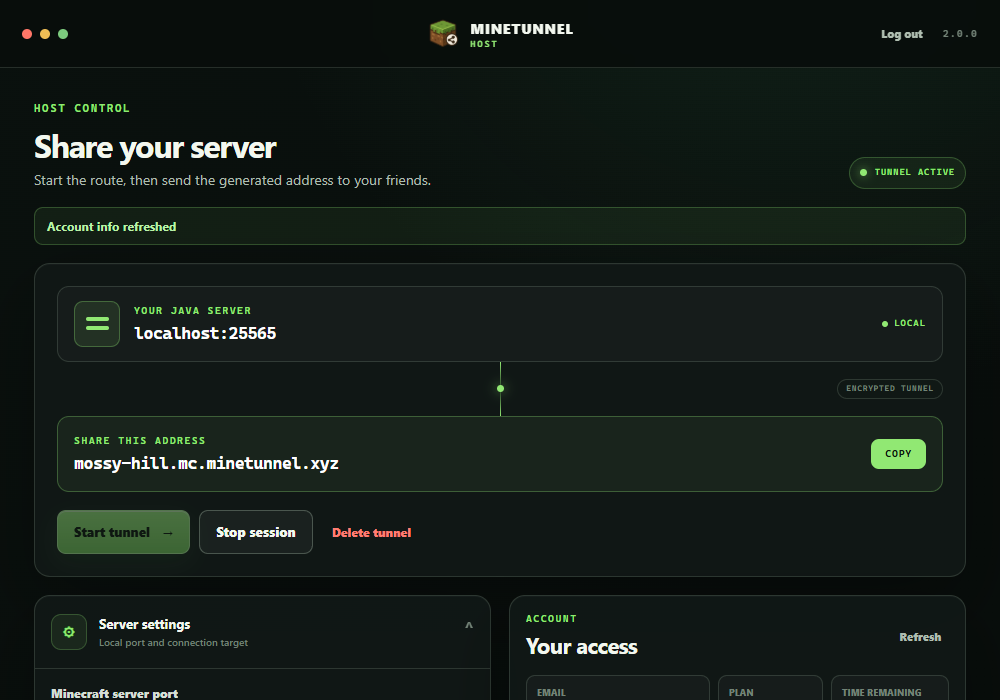
THE WHOLE HAND-OFF
MineTunnel handles the technical route. Your friend only needs to copy and paste what each app shows them.
In the Host app, choose Copy beside the green share address and send it to your friend.
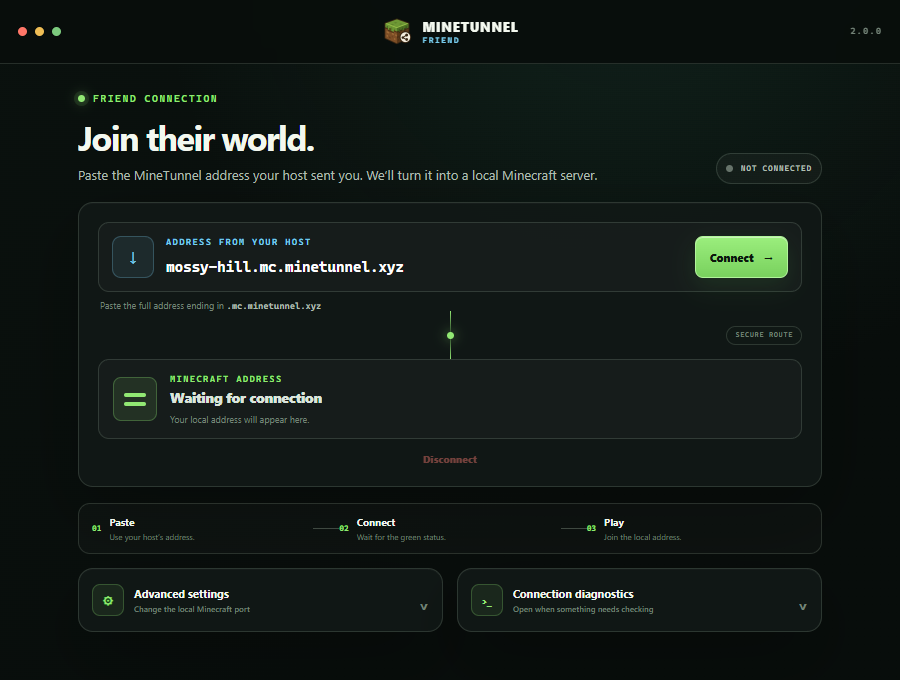
Your friend pastes the invite into MineTunnel Friend and waits for the green Connected status.
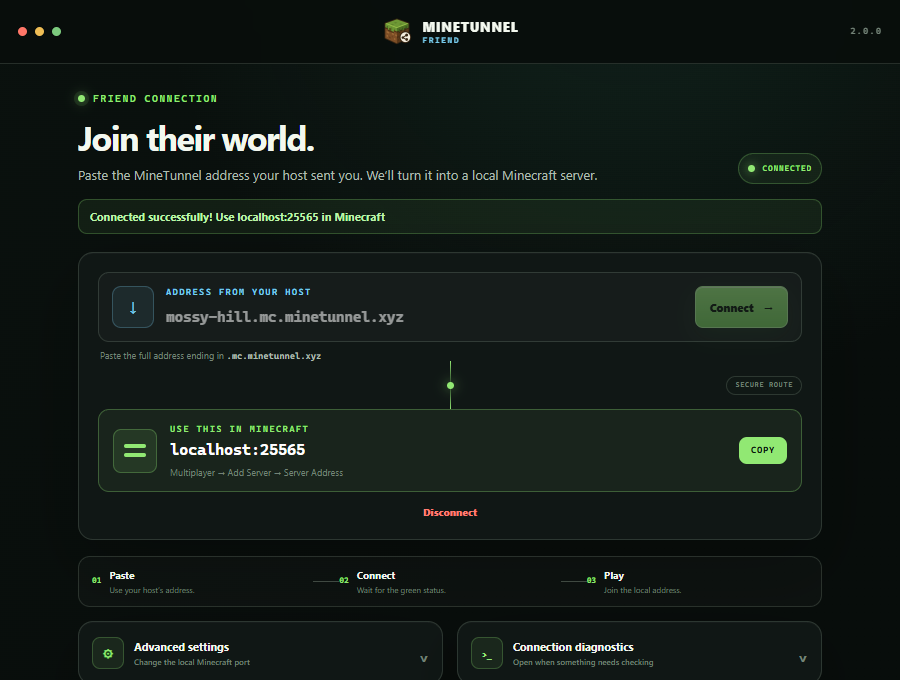
Choose Copy in Friend, paste that address into Minecraft's Add Server screen, and join.
You only need the Friend app and the address from your host. You never need the host's MineTunnel login.
Install MineTunnel Friend on the computer you use to play Minecraft Java. A MineTunnel account is not required for friends.
Copy the full .mc.minetunnel.xyz address your host sent, paste it into Address from your host, and choose Connect.
When the app says Connected, the secure route is ready. MineTunnel Friend automatically creates the Minecraft address you need.
Choose Copy in MineTunnel Friend. In Minecraft Java, open Multiplayer → Add Server, paste it into Server Address, and join.
Leave MineTunnel Friend running for the whole play session. Choose Disconnect after leaving the server.
QUICK FIXES
Check these in order. Most connection problems are a stopped local server, the wrong port, or an address pasted into the wrong app.
Friends only need the .mc.minetunnel.xyz address. Never send your MineTunnel password, server admin credentials, or home IP address.
Hosts can try a live tunnel free for 30 minutes. Friends can join without creating an account.